Burial Search settings
CIMS clients are able to control a number of settings for their public-facing Burial Search site!
To change your settings, click on "Utilities" in the top navigation bar, then "Burial Search settings". If you do not see this option, you may not have permission to edit these settings, or your cemetery might not have purchased the Burial Search addon.
Remember to click "Save settings" if you make any changes, and then refresh your Burial Search site.
Hiding areas & individual graves

The header will appear at the top of every Burial Search page. Likewise, the footer will appear at the bottom of every page.
Click on the "Header/Footer" tab at the top of the Burial Search settings popup to edit the header or footer.
Logo
Choose to display a cemetery or town logo, or show no logo at all.
Header
It is recommended that clients put the name of the cemetery as the "Display name" and the town name and state as the "Tagline". Clients can customize the font family, text bolding, text size, and the line height. The line height is the height between lines and can affect how crowded text looks.
The header will preview in the "Preview" section.
We highly recommend clients show contact information for their cemetery, including the cemetery location and phone number.
Showing the footer is optional. Each field of the footer is optional and will not show if blank.
"About" section

Clients can choose to include an "About" section. This section might have a few sentences about the cemetery, its visiting hours, or policies. Basic HTML can be used to include links to external sites, image embedding, or text styling.
Click on the "Basic settings" tab at the top of the Burial Search settings popup to edit this section.
For help with formatting the "About" section, contact our team.
Webpage link (URL)
Optionally, choose to show a link to a cemetery or town website that will display below the "About" section. This link will be bold and centered, and meant to catch the eye of website visitors.
Preset searches
There are 2 preset search options:
- "List all veterans" displays a small section on the landing page of Burial Search with text and a button to list all veterans present in a cemetery. This option is useful for outside organizations who may place flags on holidays. "List all veterans" should only be turned on if the cemetery's burials have their veteran status accurately filled out.
- "List all available spaces" displays a small section on the landing page of Burial Search with text and a button to list all of that cemetery's spaces that are available. Cemeteries can choose to also display the cost and space type as part of the list. Displaying the space type is most useful for cemeteries with a mix space types, such as ground, columbarium, and crypt.
Click on the "Basic settings" tab at the top of the Burial Search settings popup to make changes to the preset searches.

When first navigating to your cemetery on BurialSearch.com, this veteran section will display if turned on

Likewise, this section will show on the first page if "List all available spaces" is turned on


Map customization (Platinum & Gold only)
Text here
Light clients
This same tab will allow CIMS Light clients to change the background of their Burial Search site.
Hiding areas & individual spaces
With Burial Search, you are able to hide individual spaces or entire areas from public viewing and searching. If a space or area is hidden, all burials contained within will not be available to the public. This feature is most useful if a cemetery has a controversial person buried whose gravesite has perhaps been targeted by vandals in the past, or if a cemetery has an "unknown" section where burials are present, but not in their correct location until the cemetery can do additional research.
Hiding a space
Navigate to the space in CIMS using either the map (if Platinum) or the left-hand flyout. In the "Ownership" tab, scroll down; near the bottom is a checkbox labelled "Show this space in Burial Search". If checked, the space and all burials contained within will be available on Burial Search. If unchecked, the space will show as blank on the map (if Platinum) and searching for any individual buried there will not yield any results
Hiding an entire section/block/lot (Platinum only)
Like hiding a space, hiding a section, block or lot will make any burials present not viewable or searchable on Burial Search.
Open the "Burial Search settings" popup by clicking "Utilities" in the top bar, then choosing the option "Burial Search settings" from the dropdown. In the popup, click on the "Map" tab. Scroll down to the "Hidden areas" section. Choose a section, then click "Add to hidden list" to hide an entire section. Likewise, choose a section and block to hide an entire block. Finally, choose a section, block, and lot to hide an entire lot. Remember to click "Save settings" to apply your changes to your Burial Search site.
Note: Some cemeteries will not have the "Lot" option.
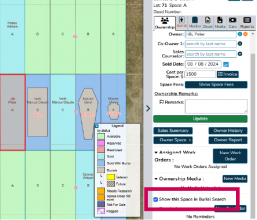
Hiding an individual space is done by checking or unchecking the "Show this space in Burial Search" option in the "Ownership" tab
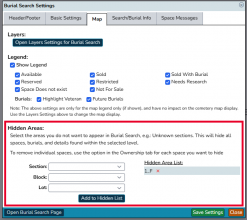
In CIMS, hide an entire section, block or lot using the "Hidden areas" feature. In this case, we have chosen to hide the entirety of Block "F" in section "1".
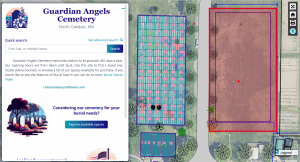
In Burial Search, we can see the entirety of block F (highlighted in red), which should have graves and burials present, is now hidden. Note: The red highlighting will not be present if your cemetery uses this feature.


Burial information
Text here
Search by owner
Searching by owner will allow website visitors to search for space owners by name. This is most useful for cemetarians wanting to reassure customers that they do have a record of their space purchase, and said purchase is viewable on a public website they can access themselves. If turned on, the owner of a space will also appear as part of the information shown when viewing a burial.
Click on the "Search/burial info" tab at the top of the Burial Search settings popup, then scroll down to "Search by owner" to turn this feature on or off.
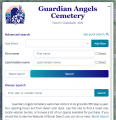
By clicking on "See advanced search", visitors to BurialSearch.com can access the "Owner search" option
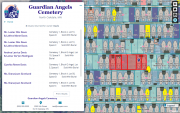
A list of relevant results will display; website visitors can navigate around the map to see where these owner spaces are located (Platinum only)
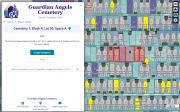
CIMS clients can customize a "Sold" space message to display the owner & co-owner names


Space messages (Platinum only)
Text here
Other settings
Minimize the information window
Clients have the option to minimize the information window so that the Burial Search map fills the screen on desktop and most tablets.
Click on the "Basic settings" tab at the top of the Burial Search settings popup. Scroll down to the "Main window minimize" section, and check or uncheck the option "Allow main window to be minimized".