Difference between revisions of "Burials"
| Line 32: | Line 32: | ||
====Edit a shape==== | ====Edit a shape==== | ||
Click on the burial whose shape you want to edit. Alternatively, open the space in the right-hand flyout and click on the Burial tab. Click the "Edit burial shape" button. Options will appear in the right-hand flyout. To change placement on the map, click on the map to where you want the burial to move or use the position buttons in the right-hand flyout. Change the size and rotation using the sliders in the right-hand flyout. In the same flyout, click on the thumbnail images to change the shape. Click "Update" when satisfied. | Click on the burial whose shape you want to edit. Alternatively, open the space in the right-hand flyout and click on the Burial tab. Click the "Edit burial shape" button. Options will appear in the right-hand flyout. To change placement on the map, click on the map to where you want the burial to move or use the position buttons in the right-hand flyout. Change the size and rotation using the sliders in the right-hand flyout. In the same flyout, click on the thumbnail images to change the shape. Click "Update" when satisfied. | ||
====Edit burial information==== | ====Edit burial information==== | ||
To edit or add burial information such as a burial date, funeral home, and so on, click on the field you want to edit, make your changes, then scroll down and click the "Update" button to save your changes. | To edit or add burial information such as a burial date, funeral home, and so on, click on the field you want to edit, make your changes, then scroll down and click the "Update" button to save your changes. | ||
<div style="clear:both;"></div> | |||
<br><br> | <br><br> | ||
==Disinter or remove a burial== | ==Disinter or remove a burial== | ||
Coming soon! | Coming soon! | ||
Revision as of 16:28, 3 March 2025
Add a burial
To add a burial to your cemetery:
- First, navigate to the space where the burial is/will be located. Click the Burial tab.
- This space needs to have a status of "Sold" or "Sold with burial". See the selling spaces page to learn how to sell a space.
- Click "New burial"
- A default burial shape will appear on the map. Change the shape of the burial using the thumbnail images; some cemeteries like to use the coffin shape to show the orientation of the burial, and many use the circle shape to indicate a cremation. Click on the map to move the shape or use the controls in the right-hand flyout. Similarly, you can change the rotation of the shape using controls in the right-hand flyout. When satisfied, click "Next".
- A burial type and interred name are required; all other fields are optional. Click "Save" when finished.
- Important! Remember to search for the interred by last name before adding them as a new customer in your cemetery. See avoiding duplicate customer records for more detailed information.
- That's it! Give the map a few seconds to refresh, and you should see the burial appear.
- If your space status was previously "Sold", CIMS has automatically changed it to "Sold with burial". This allows you to keep accurate counts of how many of your sold spaces are actually in use.
I have one burial located on two spaces, what do I do?
You need to pick one space to add the burial to. You can always visually represent the burial crossing over multiple spaces. This is a current limitation of CIMS and cannot be changed.
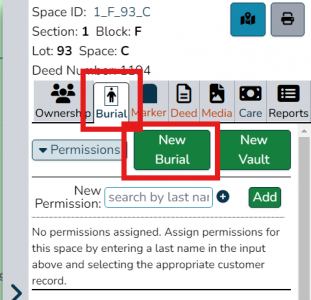
To add a burial, first click on a space's Burial tab, then "New burial".
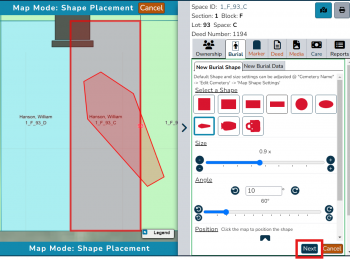
Next, place the burial shape on your map. Change the shape, size and orientation, then click "Next".
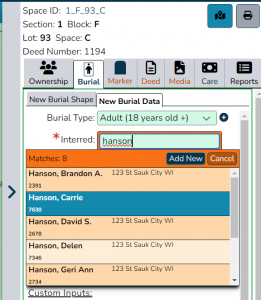
On the next screen, it is important to search for the interred person by last name before adding them as a new customer to your database.
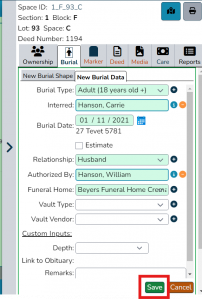
Fill out whatever other fields you would like to record in your database, then click "Save".
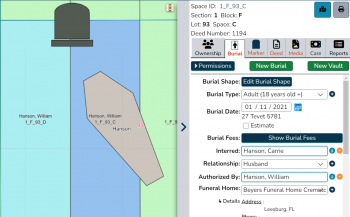
The burial has been added to your database and appears on your map!


Edit a burial

Edit a shape
Click on the burial whose shape you want to edit. Alternatively, open the space in the right-hand flyout and click on the Burial tab. Click the "Edit burial shape" button. Options will appear in the right-hand flyout. To change placement on the map, click on the map to where you want the burial to move or use the position buttons in the right-hand flyout. Change the size and rotation using the sliders in the right-hand flyout. In the same flyout, click on the thumbnail images to change the shape. Click "Update" when satisfied.
Edit burial information
To edit or add burial information such as a burial date, funeral home, and so on, click on the field you want to edit, make your changes, then scroll down and click the "Update" button to save your changes.
Disinter or remove a burial
Coming soon!