Difference between revisions of "Using Burial Search"
| Line 1: | Line 1: | ||
[[Using Burial Search#Finding your Burial Search site|Finding your Burial Search site]] | |||
[[Using Burial Search#Quick search|Quick search]] | |||
[[Using Burial Search#Advanced search|Advanced search]] | |||
[[Using Burial Search#Owner search|Owner search]] | |||
[[Using Burial Search#Available spaces|Available spaces]] | |||
[[Using Burial Search#Veterans list|Veterans list]] | |||
[[Using Burial Search#Contact information|Contact information]] | |||
[[Using Burial Search#Navigating the map (Platinum & Gold only)|Navigating the map]] | |||
[[Using Burial Search#Printing the map (Platinum & Gold only)|Printing the map]] | |||
[[Using Burial Search#Accessibility controls|Accessibility controls]] | |||
[[Using Burial Search#Navigating to a grave|Navigating to a grave]] | |||
[[Using Burial Search#Walk-to-grave|Walk-to-grave]] | |||
[[Using Burial Search#Direct URLs for spaces & burials|Direct URLs for spaces & burials]] | |||
<br> | |||
==Finding your Burial Search site== | |||
There are 3 ways to find your Burial Search site: | |||
#Go to '''[https://burialsearch.com burialsearch.com]'''and use the search feature to find your cemetery by name or location | |||
#Use the full URL of your Burial Search site | |||
##For our demo cemetery, this is https://burialsearch.com/1/Guardian+Angels+Cemetery. Your cemetery will have a similar pattern: burialsearch.com/###/Cemetery name | |||
#Use the shortened URL of your Burial Search site | |||
##For our demo cemetery, this is https://burialsearch.com/1. Your cemetery will have a similar pattern: burialsearch.com/### | |||
<br><br> | |||
==Quick search== | |||
The quick search is at the top of a cemetery's Burial Search page, just underneath the header. Visitors can input a first, last or maiden name, then click "Search" to see a list of matches. Spelling needs to be accurate for all Burial Search searches. | |||
Note: The quick search only matches the beginnings of names. Searching "will" will return results like "''Will''iam" and "''Will''iams", but not "Fitz''will''iam" or "Mac''Will''is". | |||
<br><br> | |||
==Advanced search== | |||
The advanced search is at the top of a cemetery's Burial Search page, just underneath the header. Click on "See advanced search" to access it. Spelling needs to be accurate for all Burial Search searches. | |||
Unlike the quick search, the advanced search will search for matches within a name. Searching for "ma" will return results like "''Ma''ry" and "''Ma''son" as well as "Tho''ma''s" and "A''ma''nda". | |||
<br><br> | |||
==Owner search== | |||
Owner search allows for searching by owner or co-owner name. This feature is most useful for cemetarians wanting to reassure customers that they do have a record of their space purchase, and said purchase is viewable on a public website they can access themselves. | |||
The owner search is at the top of a cemetery's Burial Search page, just underneath the header. Click on "See advanced search" to access it. Spelling needs to be accurate for all Burial Search searches. | |||
To display the owner search, this option needs to be turned on in CIMS. See the [[Burial Search settings#Search by owner|"Search by owner" section of "Burial Search settings".]] | |||
<gallery widths="300" heights="220"> | |||
File:Burial Search owner search.png|alt=Burial Search page showing the ability to search by owner|By clicking on "See advanced search", visitors to BurialSearch.com can access the "Owner search" option. | |||
File:Burial Search owner search results.png|alt=Burial Search image showing a list of matching search results, as well as their highlighted spaces on the map|A list of relevant results will display; website visitors can navigate around the map to see where these owner spaces are located (Platinum only). | |||
</gallery> | |||
<br><br> | |||
==Available spaces== | |||
Text here | |||
<br><br> | |||
==Veterans list== | |||
Text here | |||
<br><br> | |||
==Contact information== | |||
We highly recommend each cemetery include basic contact information, including the cemetery location and a contact phone number. | |||
See the [[Burial Search settings#Header & footer|"Header & footer" section of "Burial Search settings".]] | |||
<br><br> | |||
==Navigating the map (Platinum & Gold only)== | |||
Text here | |||
<br><br> | |||
==Printing the map (Platinum & Gold only)== | |||
Text here | |||
<br><br> | |||
==Accessibility controls== | |||
Text here | |||
<br><br> | |||
==Navigating to a grave== | |||
Text here | |||
<br><br> | |||
==Walk-to-grave== | |||
Text here | |||
<br><br> | |||
==Direct URLs for spaces & burials== | |||
Text here | |||
<br><br> | |||
==See also== | ==See also== | ||
[[What is Burial Search]] | |||
[[Burial Search settings]] | [[Burial Search settings]] | ||
Revision as of 16:39, 28 October 2024
Finding your Burial Search site
Direct URLs for spaces & burials
Finding your Burial Search site
There are 3 ways to find your Burial Search site:
- Go to burialsearch.comand use the search feature to find your cemetery by name or location
- Use the full URL of your Burial Search site
- For our demo cemetery, this is https://burialsearch.com/1/Guardian+Angels+Cemetery. Your cemetery will have a similar pattern: burialsearch.com/###/Cemetery name
- Use the shortened URL of your Burial Search site
- For our demo cemetery, this is https://burialsearch.com/1. Your cemetery will have a similar pattern: burialsearch.com/###
Quick search
The quick search is at the top of a cemetery's Burial Search page, just underneath the header. Visitors can input a first, last or maiden name, then click "Search" to see a list of matches. Spelling needs to be accurate for all Burial Search searches.
Note: The quick search only matches the beginnings of names. Searching "will" will return results like "William" and "Williams", but not "Fitzwilliam" or "MacWillis".
Advanced search
The advanced search is at the top of a cemetery's Burial Search page, just underneath the header. Click on "See advanced search" to access it. Spelling needs to be accurate for all Burial Search searches.
Unlike the quick search, the advanced search will search for matches within a name. Searching for "ma" will return results like "Mary" and "Mason" as well as "Thomas" and "Amanda".
Owner search
Owner search allows for searching by owner or co-owner name. This feature is most useful for cemetarians wanting to reassure customers that they do have a record of their space purchase, and said purchase is viewable on a public website they can access themselves.
The owner search is at the top of a cemetery's Burial Search page, just underneath the header. Click on "See advanced search" to access it. Spelling needs to be accurate for all Burial Search searches.
To display the owner search, this option needs to be turned on in CIMS. See the "Search by owner" section of "Burial Search settings".
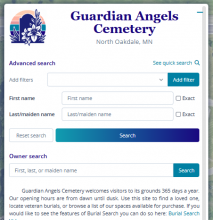
By clicking on "See advanced search", visitors to BurialSearch.com can access the "Owner search" option.
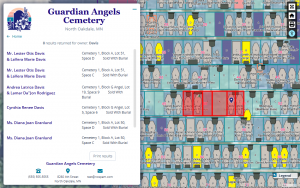
A list of relevant results will display; website visitors can navigate around the map to see where these owner spaces are located (Platinum only).


Available spaces
Text here
Veterans list
Text here
Contact information
We highly recommend each cemetery include basic contact information, including the cemetery location and a contact phone number.
See the "Header & footer" section of "Burial Search settings".
Text here
Printing the map (Platinum & Gold only)
Text here
Accessibility controls
Text here
Text here
Walk-to-grave
Text here
Direct URLs for spaces & burials
Text here