Difference between revisions of "Using Burial Search"
| (11 intermediate revisions by the same user not shown) | |||
| Line 1: | Line 1: | ||
This page addresses how to use the public-facing website [https://BurialSearch.com BurialSearch.com]. For information on how to change Burial Search settings, see [[Burial Search settings|Burial Search settings.]] | |||
<br> | |||
[[Using Burial Search#Finding your Burial Search site|Finding your Burial Search site]] | [[Using Burial Search#Finding your Burial Search site|Finding your Burial Search site]] | ||
| Line 14: | Line 18: | ||
[[Using Burial Search#Contact information|Contact information]] | [[Using Burial Search#Contact information|Contact information]] | ||
[[Using Burial Search#Navigating the map ( | [[Using Burial Search#Navigating the map (CIMS Plus & Professional only)|Navigating the map]] | ||
[[Using Burial Search#Printing the map ( | [[Using Burial Search#Printing the map (CIMS Plus & Professional only)|Printing the map]] | ||
[[Using Burial Search#Accessibility controls|Accessibility controls]] | [[Using Burial Search#Accessibility controls|Accessibility controls]] | ||
[[Using Burial Search#Navigating to a | [[Using Burial Search#Navigating to a space|Navigating to a space]] | ||
[[Using Burial Search#Direct URLs for spaces & burials|Direct URLs for spaces & burials]] | [[Using Burial Search#Direct URLs for spaces & burials|Direct URLs for spaces & burials]] | ||
| Line 34: | Line 36: | ||
#Go to '''[https://burialsearch.com burialsearch.com]'''and use the search feature to find your cemetery by name or location | #Go to '''[https://burialsearch.com burialsearch.com]'''and use the search feature to find your cemetery by name or location | ||
#Use the full URL of your Burial Search site | #Use the full URL of your Burial Search site | ||
##For our demo cemetery, this is https://burialsearch.com/1/Guardian+Angels+Cemetery. Your cemetery will have a similar pattern: burialsearch.com/###/Cemetery name | ## For our demo cemetery, this is https://burialsearch.com/1/Guardian+Angels+Cemetery. Your cemetery will have a similar pattern: burialsearch.com/###/Cemetery name | ||
#Use the shortened URL of your Burial Search site | # Use the shortened URL of your Burial Search site | ||
##For our demo cemetery, this is https://burialsearch.com/1. Your cemetery will have a similar pattern: burialsearch.com/### | ##For our demo cemetery, this is https://burialsearch.com/1. Your cemetery will have a similar pattern: burialsearch.com/### | ||
| Line 43: | Line 45: | ||
The quick search is at the top of a cemetery's Burial Search page, just underneath the header. Visitors can input a first, last or maiden name, then click "Search" to see a list of matches. Spelling needs to be accurate for all Burial Search searches. | The quick search is at the top of a cemetery's Burial Search page, just underneath the header. Visitors can input a first, last or maiden name, then click "Search" to see a list of matches. Spelling needs to be accurate for all Burial Search searches. | ||
<span style="border:2px solid #c2dce9;padding:10px;border-radius:5px;background-color:#f2fbff;margin:15px 0px;display:inline-block;">The quick search only matches the beginnings of names. Searching "will" will return results like "''Will''iam" and "''Will''oughby", but not "Fitz''will''iam" or "Mac''Will''is".</span> | |||
<br><br> | <br><br> | ||
==Advanced search== | ==Advanced search == | ||
The advanced search is at the top of a cemetery's Burial Search page, just underneath the header. Click on "See advanced search" to access it. Spelling needs to be accurate for all Burial Search searches. | The advanced search is at the top of a cemetery's Burial Search page, just underneath the header. Click on "See advanced search" to access it. Spelling needs to be accurate for all Burial Search searches. | ||
The options that are available as advanced search filters match what CIMS administrators have chosen to display as burial information. See the [[Burial Search settings#Burial information|"Burial information" section of "Burial Search settings"]] to change what information from CIMS is displayed to the public and thus searchable. | |||
<span style="border:2px solid #c2dce9;padding:10px;border-radius:5px;background-color:#f2fbff;margin:15px 0px;display:inline-block;">Unlike the quick search, the advanced search will search for matches within a name. Searching for "ma" will return results like "''Ma''ry" and "''Ma''son" as well as "Tho''ma''s" and "A''ma''nda".</span> | |||
<gallery widths="300" heights="220"> | |||
File:Burial Search showing the advanced filter dropdown.png|By clicking on "See advanced search", visitors can access the advanced search feature. By adding filters such as birth year, burial year and more, visitors can further refine search results. | |||
File:Burial Search showing several advanced search fields filled out.png|In this case, we are searching for a first name containing "ma" with a burial year of 1985. | |||
File:Burial Search advanced search results.png|The results returned from this search include "Marcella" as well as "Thomas", as the advanced search will return names that match the search term at the beginning, middle or end of the name. | |||
</gallery> | |||
<br><br> | <br><br> | ||
| Line 64: | Line 73: | ||
<gallery widths="300" heights="220"> | <gallery widths="300" heights="220"> | ||
File:Burial Search owner search.png|alt=Burial Search page showing the ability to search by owner|By clicking on "See advanced search", visitors to BurialSearch.com can access the "Owner search" option. | File:Burial Search owner search.png|alt=Burial Search page showing the ability to search by owner|By clicking on "See advanced search", visitors to BurialSearch.com can access the "Owner search" option. | ||
File:Burial Search owner search results.png|alt=Burial Search image showing a list of matching search results, as well as their highlighted spaces on the map|A list of relevant results will display; website visitors can navigate around the map to see where these owner spaces are located ( | File:Burial Search owner search results.png|alt=Burial Search image showing a list of matching search results, as well as their highlighted spaces on the map|A list of relevant results will display; website visitors can navigate around the map to see where these owner spaces are located (CIMS Professional only). | ||
</gallery> | </gallery> | ||
| Line 70: | Line 79: | ||
==Available spaces== | ==Available spaces== | ||
When first navigating to a cemetery's Burial Search site, a section might be displayed titled "Considering our cemetery for your burial needs?"; this is a special preset search that will display a list of all of a cemetery's available spaces. This feature is most useful for CIMS Professional clients, whose visitors will be able to see available spaces displayed on their map. | |||
This section is optional, see the [[Burial Search settings#Preset searches|"Preset searches" section of "Burial Search settings".]]<gallery widths="300" heights="220"> | |||
File:Burial Search available spaces section.png|This optional section will allow visitors to see a list of all available spaces in a cemetery. | |||
File:Burial Search list of available spaces.png|Each page of results will show 10 available spaces, highlighted on the map (CIMS Professional only). Showing the space type and space cost is optional. | |||
</gallery> | |||
<br><br> | <br><br> | ||
==Veterans list== | ==Veterans list == | ||
When first navigating to a cemetery's Burial Search site, a section might be displayed titled "Looking for our veterans?"; this is a special preset search that will display a list of all of a cemetery's veterans. This feature is most useful for holidays like Memorial Day, when outside organizations may want to plant flags or otherwise honor veterans. | |||
<br><br> | This section is optional, see the [[Burial Search settings#Preset searches|"Preset searches" section of "Burial Search settings"]]. For information on the display of veteran names in the veterans preset search list, see the "Name display" section of the [[Burial Search settings#Burial information|"Burial information" section of "Burial Search settings"]].<gallery widths="300" heights="220"> | ||
File:Burial Search veterans list section.png|This optional section will allow visitors to easily see a list of all of a cemetery's veterans. | |||
File:Burial Search veterans list.png|10 veterans will display per page of search results, highlighted on the map (CIMS Professional only). A veteran's branch/rank/war can be displayed with their name. | |||
</gallery><br><br> | |||
==Contact information== | ==Contact information== | ||
| Line 83: | Line 101: | ||
See the [[Burial Search settings#Header & footer|"Header & footer" section of "Burial Search settings".]] | See the [[Burial Search settings#Header & footer|"Header & footer" section of "Burial Search settings".]] | ||
[[File:Burial Search footer.png|left|thumb|540x540px|The footer contains useful information for visitors, such as the cemetery's physical location and contact information.]] | |||
<br><br> | <br><br style="clear:both"> | ||
==Navigating the map | ==Navigating the map (CIMS Plus & Professional only)== | ||
Similarly to Google maps, the Burial Search map can be controlled with basic mouse gestures. Click, drag, and move the mouse around to move the map left to right and up and down. Using the scroll button on a mouse will zoom in. For tablets, dragging with a finger will move the mouse, while pinching with two fingers will zoom the map in and out. | |||
There are several buttons to help users navigate the map in the upper-right corner of the screen: | |||
{| | |||
!Button image | |||
!Button description | |||
|- | |||
|[[File:Burial Search map controls button.png|thumb|62x62px|center|Map controls button]] | |||
|The map controls button, when clicked, reveals mouse- and touch-friendly map controls for zooming and moving the map left/up/right/down. These controls are useful for users with mobility challenges. | |||
|- | |||
|[[File:Burial Search home button.png|thumb|56x56px|Home button|center]] | |||
|To center the map on the "home" view of the cemetery, click the home button. | |||
|- | |||
|[[File:Burial Search print map button.png|center|thumb|Print button]] | |||
|Clicking on the print button puts the website into "print mode". Users can change the map to the view they want, change print size and paper orientation, add notes, and then print out the Burial Search map. | |||
|- | |||
|[[File:Burial Search map accessibility button.png|center|thumb|62x62px|Map settings/accessibility options button ]] | |||
|The map settings/accessibility options button is useful for visitors with visual challenges; use it to change the map appearance with several available presets, or control map colors individually. Textures can be applied and font sizes enlarged to further aid visitors, among other settings. | |||
|} | |||
==Printing the map ( | <br> | ||
==Printing the map (CIMS Plus & Professional only)== | |||
There are two ways to print the map: | |||
<br>< | * Visitors can use the "print mode" (see [[Using Burial Search#Navigating the map (CIMS Plus & Professional only)|Navigating the map]], above) to print a single image of the map, as well as optionally add notes and specify paper size and orientation | ||
*By selecting a space with burials, a "Print" button will appear alongside information about the buried person. Clicking on this brings up a print popup with 3 maps (CIMS Professional only); each of these maps can be individually manipulated (zoom, move map) to make it easy for visitors to find a specific grave.<br> | |||
<gallery widths="280" heights="180"> | |||
File:Burial Search view with print button highlighted.png|Method 1: The print button is located in the upper-right corner of the screen (highlighted in red here). | |||
File:Burial Search print mode with notes.png|Method 1 continued: Clicking the print button brings us into "print mode", where the map can be moved and zoomed in/out of. Notes can be added and other print options specified. Click "Print" to print or save the final result. | |||
File:Burial Search burial with print button highlighted.png|Method 2: A "print" button appears next to burial information for buried individuals. This button is meant to provide an easy printout so visitors can locate a space. | |||
File:Burial Search individual print view.png|Method 2 continued: Each of the maps can be manipulated. Click "Print" to print or save the final result. | |||
</gallery> | |||
==Accessibility controls== | ==Accessibility controls== | ||
The new Burial Search was designed with accessibility in mind. CIMS partnered with a third party company who audited burialsearch.com and provided guidance on making the website and map as accessible as possible. As of August 2024, Burial Search is WCAG 2.2 AA compliant. Visitors with visual challenges can use the map settings/accessibility options button in the upper-right corner of the map to manipulate map colors and fonts (CIMS Professional only). | |||
<span style="border:2px solid #c2dce9;padding:10px;border-radius:5px;background-color:#f2fbff;margin:15px 0px;display:inline-block;">If you have any feedback about our accessibility solutions, please [https://www.cimscemeterysoftware.com/technical-support/ contact our team].</span> | |||
<br><br> | <br><br> | ||
==Navigating to a | ==Navigating to a space == | ||
<br><br> | There are 2 ways to navigate to a space (CIMS Plus & Professional only). On desktop devices, only the first option will be visible. However, mobile devices will have 2 options, available to them by clicking "Navigate to space": | ||
*'''Google directions''' are available on every device. Simply select the space of interest and click the "Google navigation" button. | |||
*'''Walk to space''' will use a device's GPS to help users literally walk to graves. This feature is most useful if a visitor is within cemetery boundaries and has enough signal to use GPS. Click "Navigate to space" then "Walk to space" from the popup that appears. | |||
**Click "Navigate to space" | |||
**Choose "Walk to space" | |||
** A popup will appear as Burial Search asks your device's permission to use its GPS. If the signal is strong enough, this popup will minimize | |||
**Two oblong shapes, one white, one blue, will appear at the bottom of the screen; align these shapes, then walk forwards. Your distance from the targeted space is displayed within these shapes. GPS is generally accurate within 15 feet. | |||
<span style="border:2px solid #c2dce9;padding:10px;border-radius:5px;background-color:#f2fbff;margin:15px 0px;display:inline-block;">Walk to space is available only on mobile devices with GPS capabilities.</span><gallery widths="220" heights="350"> | |||
File:Burial Search navigation options on mobile device.jpg|Mobile devices can navigate to a space using either walk to space or Google directions. | |||
File:Burial Search walk to space GPQ acquisition.jpg|If walk to space is chosen, your device will first make sure it has a strong enough GPS signal to work. | |||
File:Burial Search walk to space interface.jpg|If GPS is acquired, the instructions will be minimized. Click "Instructions" at the top to view them again. Line the shapes up at the bottom, then walk forwards. In this example, the cemetery is quite far away; ideally, one would use the walk to space feature inside cemetery grounds. | |||
</gallery><br><br> | |||
==Direct URLs for spaces & burials == | |||
[[File:Burial Search showing the direct URL highlighted in red.png|thumb|450x450px|Seen here highlighted in red, the direct URL is a useful way to guide website visitors to a specific space without their having to search.]] | |||
A URL is the same thing as a link. Direct URLs can be a great way to send information to customers. If a member of the public calls in, inquiring where their loved one is buried, email or text them a direct URL. Likewise, if you have CIMS Professional and are using Burial Search as a sales tool, you can send potential customers direct URLs to available spaces that might interest them. | |||
Navigate to a space; beneath any burial information, space messages and media will be box with a URL inside. Click or tap to copy this link to your device's clipboard so that it may easily be pasted into a text or email. | |||
< | For example, note the difference between https://burialsearch.com/1/Guardian+Angels+Cemetery<nowiki/>and https://burialsearch.com/1/Guardian+Angels+Cemetery/18428; the latter takes you directly to a specific space with burial present.<br> | ||
<br | <br style="clear:both"> | ||
==See also== | ==See also== | ||
Latest revision as of 16:06, 9 June 2026
This page addresses how to use the public-facing website BurialSearch.com. For information on how to change Burial Search settings, see Burial Search settings.
Finding your Burial Search site
Direct URLs for spaces & burials
Finding your Burial Search site
There are 3 ways to find your Burial Search site:
- Go to burialsearch.comand use the search feature to find your cemetery by name or location
- Use the full URL of your Burial Search site
- For our demo cemetery, this is https://burialsearch.com/1/Guardian+Angels+Cemetery. Your cemetery will have a similar pattern: burialsearch.com/###/Cemetery name
- Use the shortened URL of your Burial Search site
- For our demo cemetery, this is https://burialsearch.com/1. Your cemetery will have a similar pattern: burialsearch.com/###
Quick search
The quick search is at the top of a cemetery's Burial Search page, just underneath the header. Visitors can input a first, last or maiden name, then click "Search" to see a list of matches. Spelling needs to be accurate for all Burial Search searches.
The quick search only matches the beginnings of names. Searching "will" will return results like "William" and "Willoughby", but not "Fitzwilliam" or "MacWillis".
Advanced search
The advanced search is at the top of a cemetery's Burial Search page, just underneath the header. Click on "See advanced search" to access it. Spelling needs to be accurate for all Burial Search searches.
The options that are available as advanced search filters match what CIMS administrators have chosen to display as burial information. See the "Burial information" section of "Burial Search settings" to change what information from CIMS is displayed to the public and thus searchable.
Unlike the quick search, the advanced search will search for matches within a name. Searching for "ma" will return results like "Mary" and "Mason" as well as "Thomas" and "Amanda".
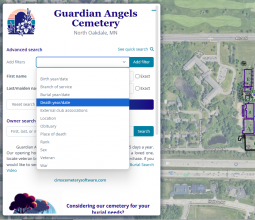
By clicking on "See advanced search", visitors can access the advanced search feature. By adding filters such as birth year, burial year and more, visitors can further refine search results.
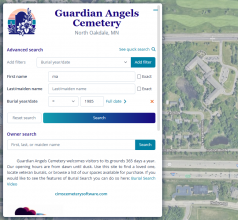
In this case, we are searching for a first name containing "ma" with a burial year of 1985.
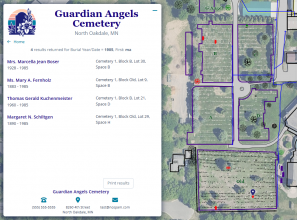
The results returned from this search include "Marcella" as well as "Thomas", as the advanced search will return names that match the search term at the beginning, middle or end of the name.


Owner search
Owner search allows for searching by owner or co-owner name. This feature is most useful for cemetarians wanting to reassure customers that they do have a record of their space purchase, and said purchase is viewable on a public website they can access themselves.
The owner search is at the top of a cemetery's Burial Search page, just underneath the header. Click on "See advanced search" to access it. Spelling needs to be accurate for all Burial Search searches.
To display the owner search, this option needs to be turned on in CIMS. See the "Search by owner" section of "Burial Search settings".
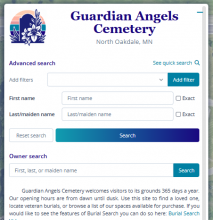
By clicking on "See advanced search", visitors to BurialSearch.com can access the "Owner search" option.
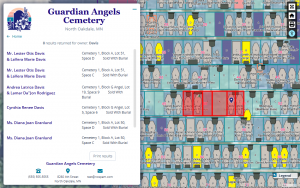
A list of relevant results will display; website visitors can navigate around the map to see where these owner spaces are located (CIMS Professional only).


Available spaces
When first navigating to a cemetery's Burial Search site, a section might be displayed titled "Considering our cemetery for your burial needs?"; this is a special preset search that will display a list of all of a cemetery's available spaces. This feature is most useful for CIMS Professional clients, whose visitors will be able to see available spaces displayed on their map.
This section is optional, see the "Preset searches" section of "Burial Search settings".
This optional section will allow visitors to see a list of all available spaces in a cemetery.
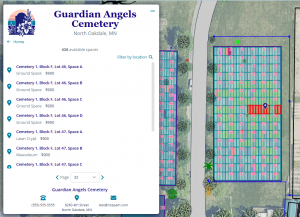
Each page of results will show 10 available spaces, highlighted on the map (CIMS Professional only). Showing the space type and space cost is optional.


Veterans list
When first navigating to a cemetery's Burial Search site, a section might be displayed titled "Looking for our veterans?"; this is a special preset search that will display a list of all of a cemetery's veterans. This feature is most useful for holidays like Memorial Day, when outside organizations may want to plant flags or otherwise honor veterans.
This section is optional, see the "Preset searches" section of "Burial Search settings". For information on the display of veteran names in the veterans preset search list, see the "Name display" section of the "Burial information" section of "Burial Search settings".

This optional section will allow visitors to easily see a list of all of a cemetery's veterans.
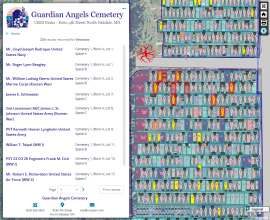
10 veterans will display per page of search results, highlighted on the map (CIMS Professional only). A veteran's branch/rank/war can be displayed with their name.


Contact information
We highly recommend each cemetery include basic contact information, including the cemetery location and a contact phone number.
See the "Header & footer" section of "Burial Search settings".

Similarly to Google maps, the Burial Search map can be controlled with basic mouse gestures. Click, drag, and move the mouse around to move the map left to right and up and down. Using the scroll button on a mouse will zoom in. For tablets, dragging with a finger will move the mouse, while pinching with two fingers will zoom the map in and out.
There are several buttons to help users navigate the map in the upper-right corner of the screen:
| Button image | Button description |
|---|---|
| The map controls button, when clicked, reveals mouse- and touch-friendly map controls for zooming and moving the map left/up/right/down. These controls are useful for users with mobility challenges. | |
| To center the map on the "home" view of the cemetery, click the home button. | |
| Clicking on the print button puts the website into "print mode". Users can change the map to the view they want, change print size and paper orientation, add notes, and then print out the Burial Search map. | |
| The map settings/accessibility options button is useful for visitors with visual challenges; use it to change the map appearance with several available presets, or control map colors individually. Textures can be applied and font sizes enlarged to further aid visitors, among other settings. |


Printing the map (CIMS Plus & Professional only)
There are two ways to print the map:
- Visitors can use the "print mode" (see Navigating the map, above) to print a single image of the map, as well as optionally add notes and specify paper size and orientation
- By selecting a space with burials, a "Print" button will appear alongside information about the buried person. Clicking on this brings up a print popup with 3 maps (CIMS Professional only); each of these maps can be individually manipulated (zoom, move map) to make it easy for visitors to find a specific grave.
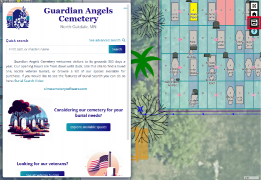
Method 1: The print button is located in the upper-right corner of the screen (highlighted in red here).
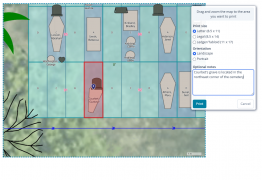
Method 1 continued: Clicking the print button brings us into "print mode", where the map can be moved and zoomed in/out of. Notes can be added and other print options specified. Click "Print" to print or save the final result.
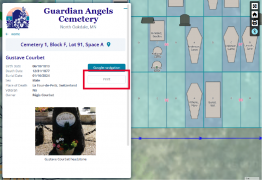
Method 2: A "print" button appears next to burial information for buried individuals. This button is meant to provide an easy printout so visitors can locate a space.
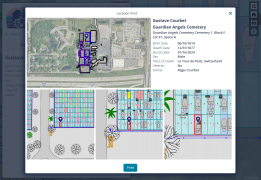
Method 2 continued: Each of the maps can be manipulated. Click "Print" to print or save the final result.


Accessibility controls
The new Burial Search was designed with accessibility in mind. CIMS partnered with a third party company who audited burialsearch.com and provided guidance on making the website and map as accessible as possible. As of August 2024, Burial Search is WCAG 2.2 AA compliant. Visitors with visual challenges can use the map settings/accessibility options button in the upper-right corner of the map to manipulate map colors and fonts (CIMS Professional only).
If you have any feedback about our accessibility solutions, please contact our team.
There are 2 ways to navigate to a space (CIMS Plus & Professional only). On desktop devices, only the first option will be visible. However, mobile devices will have 2 options, available to them by clicking "Navigate to space":
- Google directions are available on every device. Simply select the space of interest and click the "Google navigation" button.
- Walk to space will use a device's GPS to help users literally walk to graves. This feature is most useful if a visitor is within cemetery boundaries and has enough signal to use GPS. Click "Navigate to space" then "Walk to space" from the popup that appears.
- Click "Navigate to space"
- Choose "Walk to space"
- A popup will appear as Burial Search asks your device's permission to use its GPS. If the signal is strong enough, this popup will minimize
- Two oblong shapes, one white, one blue, will appear at the bottom of the screen; align these shapes, then walk forwards. Your distance from the targeted space is displayed within these shapes. GPS is generally accurate within 15 feet.
Walk to space is available only on mobile devices with GPS capabilities.
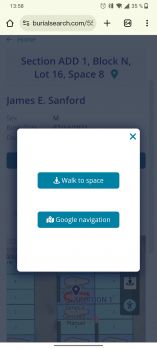
Mobile devices can navigate to a space using either walk to space or Google directions.
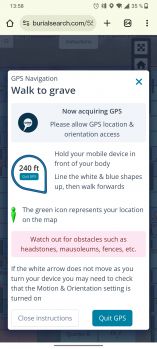
If walk to space is chosen, your device will first make sure it has a strong enough GPS signal to work.
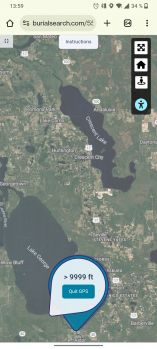
If GPS is acquired, the instructions will be minimized. Click "Instructions" at the top to view them again. Line the shapes up at the bottom, then walk forwards. In this example, the cemetery is quite far away; ideally, one would use the walk to space feature inside cemetery grounds.


Direct URLs for spaces & burials

A URL is the same thing as a link. Direct URLs can be a great way to send information to customers. If a member of the public calls in, inquiring where their loved one is buried, email or text them a direct URL. Likewise, if you have CIMS Professional and are using Burial Search as a sales tool, you can send potential customers direct URLs to available spaces that might interest them.
Navigate to a space; beneath any burial information, space messages and media will be box with a URL inside. Click or tap to copy this link to your device's clipboard so that it may easily be pasted into a text or email.
For example, note the difference between https://burialsearch.com/1/Guardian+Angels+Cemeteryand https://burialsearch.com/1/Guardian+Angels+Cemetery/18428; the latter takes you directly to a specific space with burial present.