Difference between revisions of "Deeds"
| Line 26: | Line 26: | ||
*Navigate to one of the spaces you want to create the deed for, either by clicking on it on the map or loading its information in the right-hand flyout another way. Click the Deed tab in the right-hand flyout. | *Navigate to one of the spaces you want to create the deed for, either by clicking on it on the map or loading its information in the right-hand flyout another way. Click the Deed tab in the right-hand flyout. | ||
*The need type is a required field; all other fields are optional, though we recommend adding the deed date and purchase cost if you have that information. Click "Save". | *Start entering information in the fields. The need type is a required field; all other fields are optional, though we recommend adding the deed date and purchase cost if you have that information. Click "Save". | ||
*A popup will appear asking which spaces this deed applies to. You can pick one or multiple spaces simultaneously. Click "Save". | *A popup will appear asking which spaces this deed applies to. You can pick one or multiple spaces simultaneously. Click "Save". | ||
* Your deed has been created! If it is attached to multiple spaces, you will see those spaces listed. | * Your deed has been created! If it is attached to multiple spaces, you will see those spaces listed. | ||
Revision as of 21:21, 10 March 2025
Generate a deed document in CIMS
What is a deed
We understand most cemeteries don't issue deeds, they issue rights of burial. For the purposes of brevity, CIMS documentation will use the term "deed".
Create a deed when one or multiple spaces has been purchased as recognition of the sale; once created, you can generate a deed document directly from CIMS or upload media, such as an image of a deed originally recorded on paper or in a log book, to the deed.
Create a deed
To create a deed for one or more spaces, the spaces will first need to be sold. See the page Selling spaces & more.
- Navigate to one of the spaces you want to create the deed for, either by clicking on it on the map or loading its information in the right-hand flyout another way. Click the Deed tab in the right-hand flyout.
- Start entering information in the fields. The need type is a required field; all other fields are optional, though we recommend adding the deed date and purchase cost if you have that information. Click "Save".
- A popup will appear asking which spaces this deed applies to. You can pick one or multiple spaces simultaneously. Click "Save".
- Your deed has been created! If it is attached to multiple spaces, you will see those spaces listed.
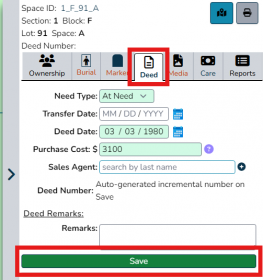
Select one of the spaces you want to add a deed to and click the Deed tab. Fill in the information for the deed and click "Save".
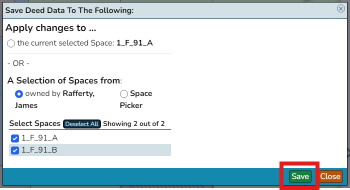
Choose which space or spaces to attach the deed to. In this case, we are attaching the deed to all spaces owned by the space's owner. Click "Save".
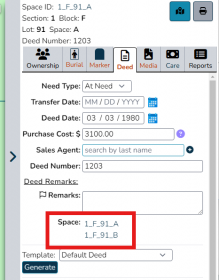
The saved deed will clearly display which spaces are attached to it.


Edit a deed

Changing deed information
Click on the space whose deed you want to edit. Alternatively, open the space in the right-hand flyout using another method, such as the List or Search tab. Click on the Deed tab. Edit the fields you want to change by clicking on them and typing in them. When ready, click "Update".
Adding an existing deed to a space
To add a deed to a space, you will need to delete the deed, then re-create and attach it to the appropriate spaces.
Remove a space from an existing deed
Click the red "Remove deed" button. If this deed is attached to multiple spaces, you will see options to remove the deed from one or all spaces. Click "Cancel remove deed" if you change your mind and don't want to make changes to what spaces this deed is attached to.
Delete a deed

To delete a deed, open its information in the right-hand flyout then click the red "Remove deed" button. If the deed is only attached to one space, click "Ok" in the confirmation popup. If the deed is attached to multiple spaces, click the red "Remove" button next to the option that reads "from all its assigned spaces". Click "Ok" in the confirmation popup. The deed has now been deleted.
Add media to a deed

Your cemetery may want to upload a copy of a deed to CIMS. This deed might be originally on paper, or a digital document, it doesn't matter. From the Deed tab, scroll down to the deed media section and click the navy "New media" button. A popup will appear with 3 tabs:
- Tab 1 allows you to upload an image from your device. You can choose to resize the image or keep its original size.
- Tab 2 allows you to use your device's camera to take a photo and directly upload it into CIMS. This is an especially useful option if you have a lot of paper records you want to take photos of! Just use a tablet's built-in camera or use a document camera attached to your computer.
- Tab 3 allows you to save a YouTube link as media.
Use the relevant tab to add your media, then click "Save". Your media has now been saved to the deed!
Generate a deed document in CIMS
You can generate deed documents directly in CIMS using either our default deed or a custom-built one. See below for more information about custom deeds.
Click on one of the spaces the deed is attached to, or otherwise load its information in the right-hand flyout. Click on the Deed tab. Scroll down to the "Template" dropdown and choose an option, usually "Default deed". Click the navy blue "Generate" button.
A preview of the deed will appear in a popup. Please note, this preview is not 100% accurate and may appear different when printed, as web and print technologies do not always play nicely together. The deed will have certain information auto-filled as long as you have it saved in CIMS; the default deed will show the space or spaces attached to the deed, deed date, owner and co-owner names, and more. Save or print the deed using the buttons in the bottom-right to see what the final printable or save-able document looks like.
The "Save" button in the bottom-right will save the deed directly into CIMS as a PDF. The "Print" button can be used to print the deed or to save it as a PDF on your device.
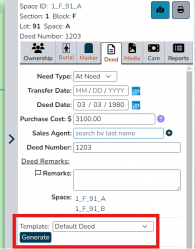
To generate a deed document, choose a template from the dropdown and click "Generate".
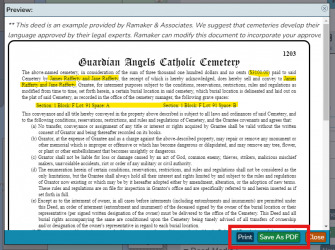
A preview of the document will appear. As you can see, CIMS has auto-filled in certain information, such as the names of the owner and co-owner, the spaces the deed is attached to, the cost, and more. The deed can be printed, saved to your device or saved directly into CIMS from this popup.


Custom deeds
CIMS can create a custom deed for you! This deed will auto-fill information such as deed date, owner and co-owner names, cost, and much more; all you need to do is first save the information in CIMS, then generate the deed. We can add your cemetery's logo, custom legalese your team provides us, specific fonts and formatting, and more. Contact our team to learn more about the process of creating a custom deed.