Searching (Core & Plus)
The most useful search: Customer searches
Search basics

Use the search tab in the left-hand panel to get a complete list of all spaces or burials, to search for specific burials or customers, to get all of your work orders, find a marker, and so much more.
At the top of the left-hand panel are 3 tabs; the second one is labelled "Search". Click it to open the search tab.
Search types
There are 9 search types at this time, listed below. All fields in a search are optional.
To get a list of all results in a search type, choose that type from the dropdown and click "Search". So, in order to get a list of all deeds in your cemetery, choose the type "Deeds", then click "Search".
| Search type | Description |
|---|---|
| Space | Run searches relating to your cemetery's spaces. Filter by section/lot/block, or by the space's status (sold, restricted, etc.). You can also search by the owner's name, sold date, and more.
Note: This label may be different based on your cemetery's settings. For you, it may be "Plot", "Grave", or another term. |
| Burials | This search will only return customer records of buried persons in your cemetery. Filter by where in your cemetery people are interred, run a search by last name, burial or death date, and more. |
| Markers | If your cemetery has recoded data about your markers, you can run searches on them. Filter by section/block/lot, by the type of marker, vendor, and so on. |
| Deeds | Any deed information you have saved in CIMS can be searched for. Filter by section/lot/block, deed date, cost, and more. |
| Permissions | Not all cemeteries use permissions; if you do, you can filter by location in your cemetery or search by name. |
| Work orders | Likewise, work orders are another optional feature. Filter work orders by section/lot/block, by the type of work order, due date, and so on. To get a list of all work orders in your cemetery, don't fill out any of the fields, just click "Search" at the bottom-left corner of the left-hand flyout. |
| Ownership history | Ownership history is the record of all past owners of spaces. Filter by location, by owner/co-owner name, and more. |
| Customers | The most useful search! See the dedicated section below. Get a comprehensive look at customers in your cemetery, regardless of if they're owners, interred, authorized parties, etc. Filter by name, address, birth date, veteran status, deceased status, and more.
|
| Care funds | Not all cemeteries use care funds; if you do, filter by location, cost, description, and more. |
Search results
To run a search, click navy blue "Search" button in the bottom-right corner of the left-hand flyout. Click the orange "Reset" button to clear out any search fields you may have filled.
When a search has been run, a new popup will open on your screen. At the top will be listed how many total search results have been found. You will also have buttons to print the list of results, download them, or save this search (see below).
The search results information will probably be longer and wider than your screen can show; use the scroll bars on the bottom and right side to see more. If you have more than 100 search results, buttons at the bottom of the popup will allow you to change what page of results you are viewing.
To change what columns appear in your search results, click the three blue vertical lines at the top of the search results, to the left of the column headers.
Click on a search result; depending on what type it is, either the right-hand panel will load more information, or a customer record will show.

Changing your default search

You can easily change your default search type, which is the one that first opens when you click on the Search tab. Just select the type from the dropdown and click the white star next to the dropdown so that it turns solid black.
Similarly, you can also choose a default tab; this is the tab that will first display when you login to CIMS. Click the tab you would like to make the default, then click the white star next to the tabs so that it turns solid black.
Saving searches
Do you find yourself often running the same search over and over? You can save it!
- Run your search as per usual, filling in any fields you want.
- In the search results popup, click on the "Save" button in the top bar.
- Fill out the "Saved Search Label" with the name of this search, then click "Save".
- Back in the Search tab, near the top is the "Saved searches" dropdown. Your search will be listed here.
- To run a saved search, click on it from this list, then click "Search".
To change the name of a saved search or delete it, click the pencil-on-paper button next to the "Saved searches" dropdown to open a popup.
Don't see your search listed? Try changing the search type. Saved searches are attached to the type of search they are, and will only show if the correct option is chosen in the dropdown.
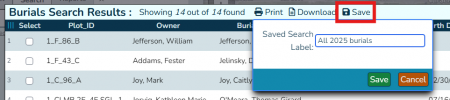
Circled in red is the "Save" button to save a search. Fill in the name you want to save the search as and click "Save".
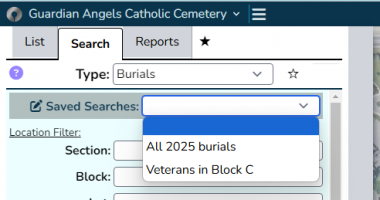
In the Search tab of the left-hand flyout, your saved searches will be listed.
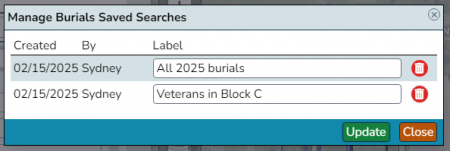
Click on the pencil-on-paper button to open a popup where you can change the name of a saved search or delete it.


The most useful search: Customer searches

Customer searches are a great way to get a quick overview of how a customer or family has interacted with your cemetery.
As an example, choose "Customers" as the search type and enter in a last name. In the example image, I am searching for the Klondike family; look at the "Assignment" column to see who is an owner in the cemetery, who is interred, and more. Clicking on an assignment will bring up a list of spaces, that you can then click on to load the space information in the right-hand panel. Click on the customer's name to open their customer record.
To learn more about customers and customer records, refer to the customers page.
🎬Watch a video! The customer search
Finding veterans
Our clients often need to know where veterans are buried. You have a few options:
- We have a pre-built military report, read more about it here.
- Use the Search tab.
Using the Search tab
In the Search tab, choose the type "Burials". Click the checkbox next to "Veteran" (about halfway down) and click "Search". You can choose to print or download these search results.