Dropdown options (formerly constants)
A warning about changing dropdown options
Dropdown options basics

A dropdown option (formerly known as a "constant") is an option that appears in a dropdown box. These are found throughout CIMS, you use them all the time - think burial types, names of funeral homes, wars and military ranks (used by veterans), and more.
Add a dropdown option
First, you will need to open the dropdown options popup. There are two ways to do this:
- In the top navigation bar, click your cemetery's name. A dropdown menu will appear; click on "Dropdown options" or select an option from the dropdown list next to "Dropdown options".
- Any place in CIMS you see a customizable dropdown, there will be a navy blue circular button with a white plus inside. Click this button to see the options for this particular dropdown.
In the dropdown options popup, there will be a field at the top with the placeholder text "New option". Type in the name of the new option you would like to add and any remarks (optional). Click "Save". The new option will appear in the list of options below.

Edit dropdown options
Follow the steps above to open the dropdown options popup. To change an option's name, simply click on it, type, and click "Update". Remarks are optional; follow the same procedure to edit them.
To delete an option, click the red trash can icon to the right of the "Update" button. CIMS will not allow you to delete a dropdown option that is in use.
Use caution when changing an option's name! It will change all records in your database using that option. See below, a warning about changing dropdown options
A warning about changing dropdown options
Be careful when changing the name of a dropdown option, it could have unintended consequences! For example, if you change an option for a burial type from "Cremation" to "Adult full-body burial", any burials in your cemetery that were using the option "Cremation" will now have a burial type of full-body adult burials! We recommend only changing the names of dropdown options if you need to fix a spelling or minor grammatical error.
Merging dropdown options
Use the dropdown options popup to merge dropdowns. Click the checkboxes on the right side of the options you want to merge; you are not limited to merging two options at a time, you can select however many you need. Next, click the green "Merge" button in the lower-right corner of the popup. You will be asked which of the options you want to keep, choose one and click "Save".
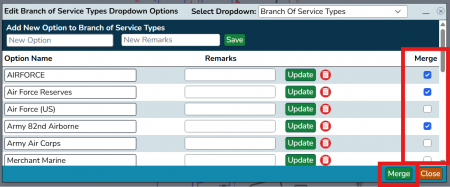
To merge dropdown options, click on the checkboxes to the right of the options you want to merge, then click "Merge".
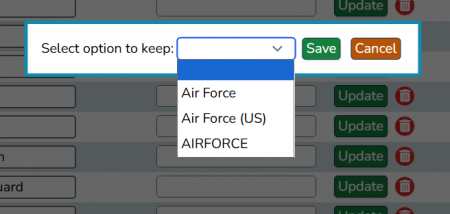
Choose the option you want to keep and click "Save".

