How to use CIMS for on-site headstone photos
If you have a mobile device with internet connectivity, you can use it to take photos of headstones in your cemetery and save them directly into CIMS! This makes it easy to ensure that headstone photos are being saved to their correct spaces.
Video
Coming soon! This page is under construction.
Text instructions
- First, login to CIMS. If you don't have internet access, you won't be able to upload photos.
- In the cemetery, stand in front of the headstone you want to photograph. Find this space in CIMS and load its information. For Platinum cemeteries, you can tap the space directly on the map. Alternatively, all cemeteries can use the List tab to load a space's information.
- Double-check that you have the correct space loaded in CIMS before continuing.
- Tap the navy "New media" button in the "Ownership" tab. Another option is to add a marker record in your database and upload the photo there.
- Tapping "New media" opens the media upload popup. This popup has 3 tabs; to take a photo directly from your device, select the "Web/document cam" tab. Choose your device's camera from the dropdown, then tap "Load". If your camera isn't listed in the dropdown, your device may not have one or may have a software issue.
- Position your device to frame the headstone. When the headstone is framed correctly, tap "Capture". A still image will appear in the media upload popup. This is the image will be saved to your database. If you don't like it, simply reposition your device and tap "Capture" again. Adding a title to the image is optional.
- Next, tap "Select space" in the lower-right corner of the media upload popup. By default, this image will save only to the space you have loaded in CIMS. If the headstone spans multiple spaces, you can select additional spaces to save time. Tap the green "Save" button.
- You’ve successfully saved an image to CIMS! It will appear in the "Ownership media" section of the Ownership tab. If you saved the image to a marker, it will appear in the Marker tab.
- Continue walking through the cemetery and taking photos of the headstones. Always make sure you have the correct space loaded before taking a photo.
1. Login to CIMS. If you don't have internet access, you won't be able to upload photos.
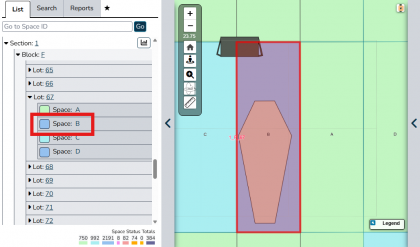
2. In the cemetery, stand in front of the headstone you want to photograph. Find this space in CIMS and load its information. For Platinum cemeteries, you can tap the space directly on the map. Alternatively, all cemeteries can use the List tab to load a space's information.
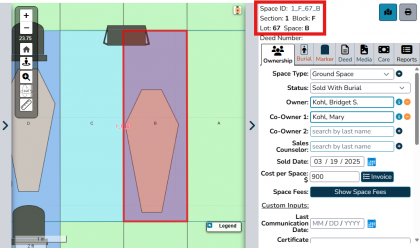
3. Double-check that you have the correct space loaded in CIMS before continuing.
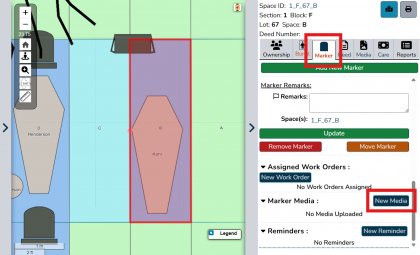
4. Tap the navy "New media" button in the "Ownership" tab. Another option is to add a marker record in your database and upload the photo there.
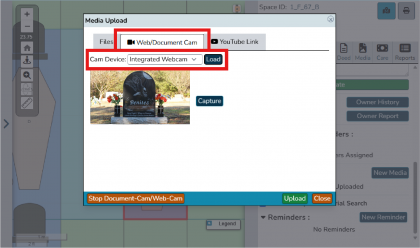
5. Tapping "New media" opens the media upload popup. This popup has 3 tabs; to take a photo directly from your device, select the "Web/document cam" tab. Choose your device's camera from the dropdown, then tap "Load". If your camera isn't listed in the dropdown, your device may not have one or may have a software issue.
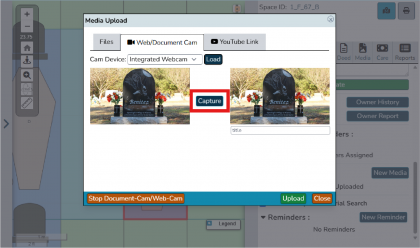
6. Position your device to frame the headstone. When the headstone is framed correctly, tap "Capture". A still image will appear in the media upload popup. This is the image will be saved to your database. If you don't like it, simply reposition your device and tap "Capture" again. Adding a title to the image is optional.
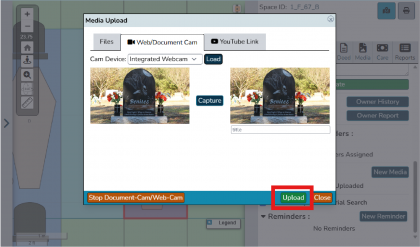
7. Next, tap "Select space" in the lower-right corner of the media upload popup. By default, this image will save only to the space you have loaded in CIMS. If the headstone spans multiple spaces, you can select additional spaces to save time. Tap the green "Save" button.
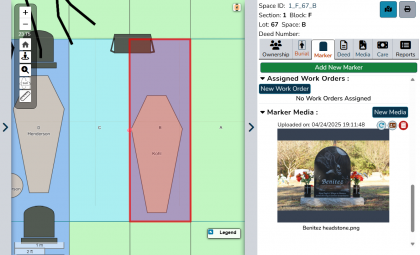
8. You’ve successfully saved an image to CIMS! It will appear in the "Ownership media" section of the Ownership tab. If you saved the image to a marker, it will appear in the Marker tab.


Troubleshooting
Can I use my phone?
Sure! We usually recommend using a tablet for this process because the screen will be larger, but you can use a phone.
I don't have wifi in my cemetery!
If your phone has mobile data, you should be able to use your phone. If you are using a tablet, you may be able to set up a hotspot with your phone, connect to your phone's hotspot from the tablet, and then your tablet will have internet connectivity.
When I press "Capture" to take a photo, nothing happens.
The process of capturing a photo from your device can take time; please be patient and wait to see if an image appears. If it does not, your internet connection may not be strong enough for this process.
What is my alternative if I can't make this work?
If this just isn't working for you, we recommend taking photos of headstones using a phone or camera and uploading them to CIMS when you are in a place with strong internet connectivity. This may involve transferring the photos from your phone or camera to a computer, and then following the steps to add media to markers.