Work orders
This page is under construction
The work order progressive web app - work orders on your phone!
Work order basics

Your cemetery might choose to use work orders to direct your internal employees to do certain work, such as digging graves, installing a headstone, pruning a tree, etc. Work orders can have optional due dates, can have media attached to them, can be marked as completed, and more. Once created, you can email a work order to someone or print it out, just use the "Email" or "Print options" buttons.
If your cemetery does choose to use work orders, you can have a member of the staff logged into CIMS and logged into the work order progressive web app simultaneously; this is useful if you have staff out in the field who need to see assigned work, but you don't necessarily want to pay for an extra license. This is an exception to how our licenses normally work. Read more about the progressive web app below.
Create a work order
Work orders can be created from several places:
- Click on "Work orders" in the top navigation bar, then click "New work order".
- Throughout the right-hand flyout, on the Ownership tab, Burial tab, Marker tab and more, there will be "New work order" buttons.
- An advantage of creating a work order from the Ownership tab, for example, is that information about the space will auto-fill. The other tabs will work similarly, where a work order made from a marker on the Marker tab will auto-fill with marker information, etc.
Use one of the above methods to start the process. The right-hand flyout will change to read "New work order". To easily create a work order for a space, marker or burial, just click on it on your map. Fill out as much or little information as you like, including the task, priority, due date, details about the work that needs to be done, and more. Click "Save".
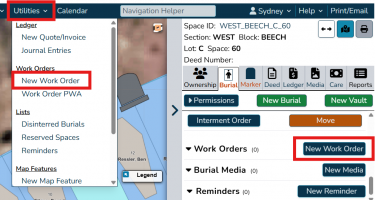
Work orders can be created several ways. Use the navigation bar or buttons found throughout the right-hand flyout.
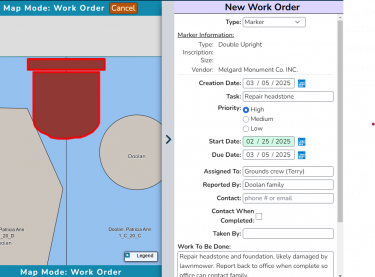
Fill in the work order's information, then click "Save".
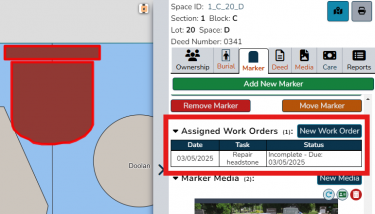
In the above image, this marker has a work order associated with it. The work order will show below the marker's information, and above its media. Click on the work order to see its details.


Find a work order

If a work order is associated with a space, it will show in the Ownership tab for that space in the work orders section. Click on the space or load its information in the right-hand flyout another way to see its work orders. Similarly, work orders associated with a marker will show with its information in the right-hand flyout, and the same with burials. Need a complete list of your work orders? In the Search tab of the left-hand flyout, choose the type "Work orders". For a complete list of work orders, just click "Search", no need to fill out anything else. Refine your search results by type, task, completion, and other filters. Read more about searching on the Searching page.
Edit a work order
Editing a work order is easy; first you will need to load its information in the right-hand flyout. There are two ways you can do this:
- Use the Search tab to search for the work order. In the list of search results, click on the work order in question.
- If the work order is associated with a space, burial or marker, you can click on the space, burial or marker on the map. Its information will load in the right-hand flyout. Scroll down and below the space/burial/marker's information, the work order should be listed in a table. Click on the work order entry.
Now that the work order's information is loaded in the right-hand flyout, make any changes you'd like by clicking on the text you'd like to change and typing, or changing one of the other options displayed. Click "Update" to save your changes.
Add media

As with markers, burials and more, you can add media to a work order. Load the work order's information in your right-hand flyout, then scroll down to the work order media section. Click the navy blue "New media" button. A popup will appear with 3 tabs:
- Tab 1 allows you to upload an image from your device. You can choose to resize the image or keep its original size.
- Tab 2 allows you to use your device's camera to take a photo and directly upload it into CIMS. This is an especially useful option if you have good signal in your cemetery! Just take a tablet out to your cemetery grounds and use its built-in camera to take photos of any work that was done related to this work order.
- Tab 3 allows you to save a YouTube link.
Use the relevant tab to add your media, then click "Save". Your media has now been saved to the work order.
Work orders with multiple images will have arrows to the left and right. Click these arrows to navigate between media. To rearrange the order of media, click and drag on the dots underneath the images.
The work order progressive web app - work orders on your phone!